Coin Community Family of Web Sites Join Thousands of Coin, Bullion, & Money Collectors
Shop for APMEX Bullion on eBay!Coin, Banknote and Medal Collectors's Online Mall Royal Canadian Mint products, Canadian, Polish, American, and world coins and banknotes. Join Thousands of Coin, Bullion, & Money Collectors Vancouvers #1 Coin and Paper Money Dealer Specializing in Modern Numismatics 300,000 items to help build your collection!


Username:
Password:
Save Password
Forgot your Password?


This page may contain links that result in small commissions to keep this free site up and running.

Welcome Guest! Registering and/or logging in will remove the anchor (bottom) ads. It's Free!

Photoshop Elements ..... Editing Question

To participate in the forum you must log in or register.
Author Previous TopicReplies: 5 / Views: 2,021Next Topic  
Moderator
Learn More...
nickelsearcher's Avatar
United States
15414 Posts
 Posted 12/15/2010  7:32 pm Show Profile   Bookmark this topic Add nickelsearcher to your friends list Get a Link to this Message Number of Subscribers
I've been really focused in the past month or so on improving my coin photography skills ....... evolved from a handheld, out-of-focus poorly lit image to something that at least resembles the coin in hand.

FWIW .... my camera is a pocket-size Cannon SD1200IS, 10.0 mega pixels which I take everywhere with me. I have a 'photo-setup' in my workshop with a tripod, light tent and 2 each 30 watt 5500K daylight balanced compact fluorescent lights on stands.

Sooooo ... the raw photographs are getting better ..... not done yet with experimenting with light ..... but at least I have something that I can share with all of you with minimal embarrassment.

Now I need a little bit of help with an editing problem that I am banging my head against.

I am using Photoshop Elements 6 to create composite images of my coins.

My problem is that my composite images show a thin white border where I have overlayed the various images onto the background layer. I note that the white border corresponds exactly to the size I cropped the images before moving them to the background.

Here is a current example:
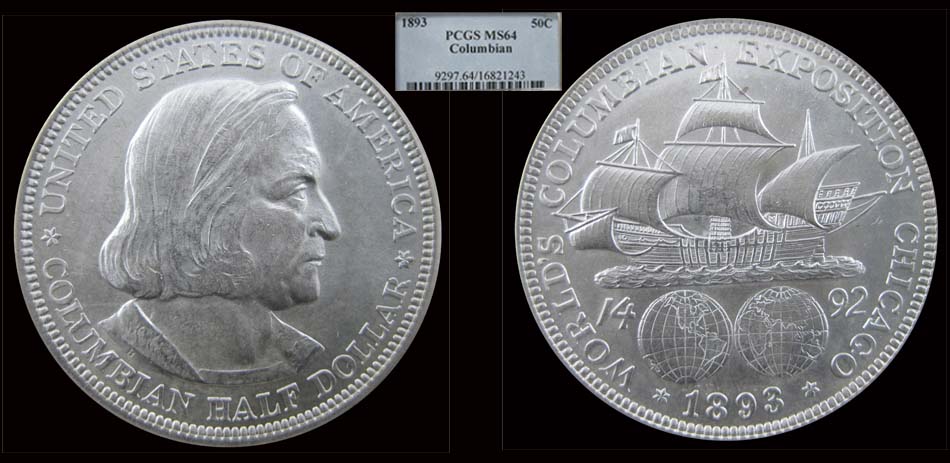
Photoshop-Elements-.....-Editing-Question

Soooooo .... how do I get rid of the thin white line?

Have tried everything I can think of ..... and my "Elements for Dummies" is getting dog-eared looking for the answer.

Appreciate any support you can offer.

David

Take a look at my other hobby ... http://www.jk-dk.art
Pillar of the Community
xshift's Avatar
United States
2669 Posts
 Posted 12/15/2010  8:24 pm  Show Profile   Bookmark this reply Add xshift to your friends list Get a Link to this Reply
Sounds like it's automatically setting a border... try looking for a setting for that, and/or set your background and foreground to the same black color before cutting/cropping.
Moderator
Learn More...
SsuperDdave's Avatar
United States
23522 Posts
 Posted 12/15/2010  8:41 pm  Show Profile   Bookmark this reply Add SsuperDdave to your friends list Get a Link to this Reply
I can't comment on the border - not a Photoshop guy - but a suggestion:

Decrease Levels to about 85% on these pics, and add 10% Contrast. See what you get - I think you'll like it. You might be able to go lower with Levels.
Previously Banned Member
EyeEatWheaties's Avatar
United States
71 Posts
 Posted 12/16/2010  01:35 am  Show Profile   Bookmark this reply Add EyeEatWheaties to your friends list Get a Link to this Reply
I can't see it in your photo on this page. the crop looks fine on this end.

Check your selection tool. You have what looks like a blurred 15 pixel set on your cut out. I believe you can also change select the color and gradient. Not sure what anti-aliasing exactly is, but turn it on.

I was forced into Gimp when my PS wouldn't load on this 128 bit puter. I doubt I will ever look back.


Moderator
Learn More...
nickelsearcher's Avatar
United States
15414 Posts
 Posted 12/18/2010  2:50 pm  Show Profile   Bookmark this reply Add nickelsearcher to your friends list Get a Link to this Reply

Quote:
Decrease Levels to about 85% on these pics, and add 10% Contrast.


Wow ...... I do like it. Levels here are at 80% and contrast boosted 10%. Much closer now to the actual coin in hand.


Photoshop-Elements-.....-Editing-Question

Thanks for the advise SuperDave!

David
Take a look at my other hobby ... http://www.jk-dk.art
Moderator
Learn More...
SsuperDdave's Avatar
United States
23522 Posts
 Posted 12/18/2010  3:24 pm  Show Profile   Bookmark this reply Add SsuperDdave to your friends list Get a Link to this Reply
Dirty tricks of the trade.
  Previous TopicReplies: 5 / Views: 2,021Next Topic  

To participate in the forum you must log in or register.


Disclaimer: While a tremendous amount of effort goes into ensuring the accuracy of the information contained in this site, Coin Community assumes no liability for errors. Copyright 2005 - 2026 Coin Community Family- all rights reserved worldwide. Use of any images or content on this website without prior written permission of Coin Community or the original lender is strictly prohibited.
Contact Us  |  Advertise Here  |  Privacy Policy / Terms of Use

Coin Community Forum © 2005 - 2026 Coin Community Forums
It took 0.22 seconds to rattle this change. Forums


