









 Posted 02/26/2024 11:57 pm


Sure. Here is a quick example using the 1941 Large-S nickel. There are 16 known dies cataloged on Variety Vista. I had previously made a quick reference grid to analyze the mint marks by position, orientation, and shape.
I took the first PCGS coin image and tinted it yellow so it's easier to see. The first two frames are a comparison to mint mark 06. I lined up the corner of the base of Monticello and the building wall, which gets the two images approximately to the same scale. It isn't perfect; it works a lot better when the rim is also in the Variety Vista frame. As I brought up the opacity of the comparison coin, you can see that the mint mark positions don't match.
Next I tried 12. You can see that the positions and shape are a much closer match. Obviously if this were a real analysis, the mint mark needs to be compared to several similar mint marks in the grid as well. I can't illustrate the animation with still images, but I can fade the top image from 0 to 100 with the slider. Rotation and zoom in/out are the standard two finger swipes. The Blending function is accessed from the Tool menu (wrench icon) once you create a project with the two images to compare.
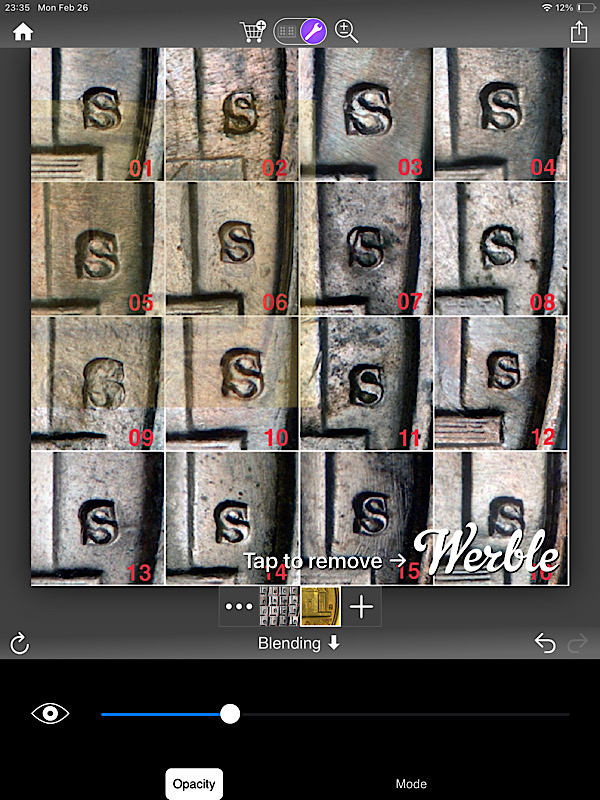
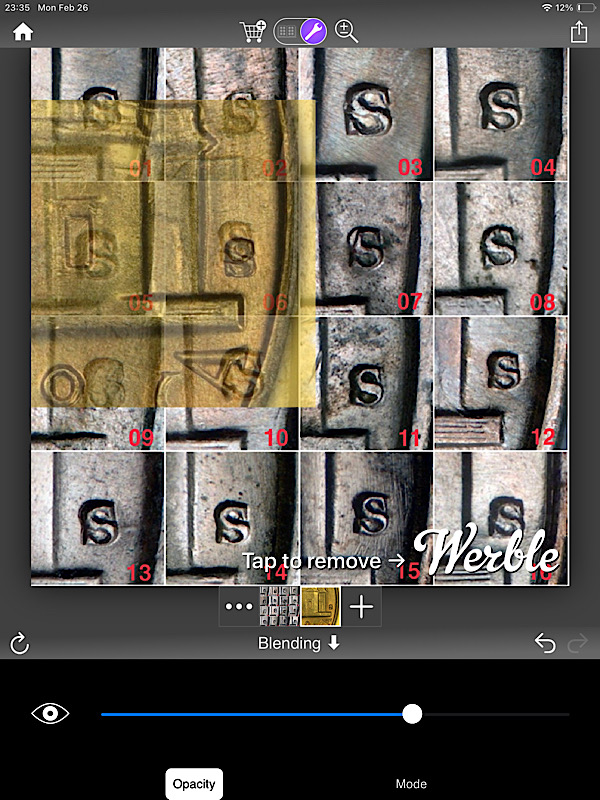
I took the first PCGS coin image and tinted it yellow so it's easier to see. The first two frames are a comparison to mint mark 06. I lined up the corner of the base of Monticello and the building wall, which gets the two images approximately to the same scale. It isn't perfect; it works a lot better when the rim is also in the Variety Vista frame. As I brought up the opacity of the comparison coin, you can see that the mint mark positions don't match.
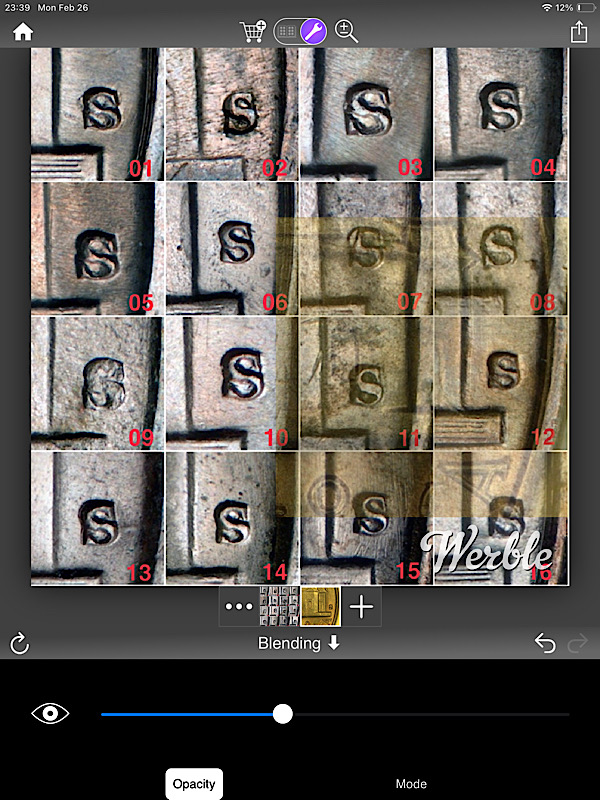
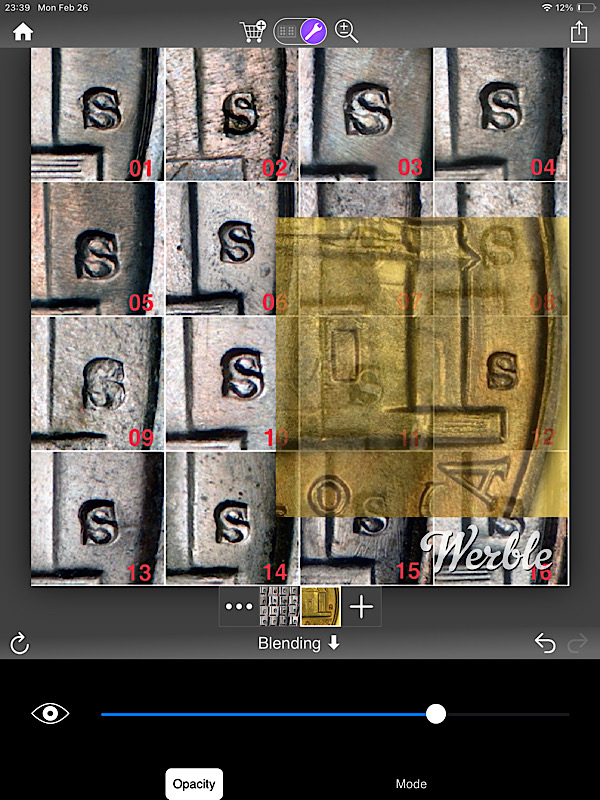
Next I tried 12. You can see that the positions and shape are a much closer match. Obviously if this were a real analysis, the mint mark needs to be compared to several similar mint marks in the grid as well. I can't illustrate the animation with still images, but I can fade the top image from 0 to 100 with the slider. Rotation and zoom in/out are the standard two finger swipes. The Blending function is accessed from the Tool menu (wrench icon) once you create a project with the two images to compare.


