Coin Community Family of Web Sites Join Thousands of Coin, Bullion, & Money Collectors
Royal Canadian Mint products, Canadian, Polish, American, and world coins and banknotes. 300,000 items to help build your collection! Coin, Banknote and Medal Collectors's Online Mall Specializing in Modern Numismatics Vancouvers #1 Coin and Paper Money Dealer Join Thousands of Coin, Bullion, & Money Collectors Royal Estate Auctions - $1 Coin Auctions


Username:
Password:
Save Password
Forgot your Password?


This page may contain links that result in small commissions to keep this free site up and running.

Welcome Guest! Registering and/or logging in will remove the anchor (bottom) ads. It's Free!

Cutting The Coin Out Of Original Image In Photoshop?

To participate in the forum you must log in or register.
Author Previous TopicReplies: 29 / Views: 10,277Next Topic
Page: of 2
Pillar of the Community
Canada
1248 Posts
 Posted 11/05/2010  12:11 pm  Show Profile   Bookmark this reply Add hhbkiddo to your friends list Get a Link to this Reply
Jbuck, all fine asd good....BUT:
they specifically said that all you have to do is to UNCLICK all you do not want.
anyway , I reset my system and bought a software....(not theirs)
Previously Banned Member
EyeEatWheaties's Avatar
United States
71 Posts
 Posted 11/27/2010  02:47 am  Show Profile   Bookmark this reply Add EyeEatWheaties to your friends list Get a Link to this Reply
Gimp all the way!! I have used Photoshop in past years but had to abandon it with the new 64 bit puter I have now. Gimp has everything and more

Gimp's leaning curve is a bit steep and can be daunting if you don't already have PS skills. It's worth downloading and learning over the long run.

Compositions are a breeze with the ability to create and save templates.

Now I am curious on the comparative image quality in relation to resizing that photobucket and the resizing MS Power Toy does. testing 123

this image originally was 5800x3400 ~ 10mb I think you can click on it twice?

Cutting-The-Coin-Out-Of-Original-Image-In-Photoshop?


This one I used the MS Resizing Power Toy before the upload to an image size of 1842x1080 ~ 279kb about 1/40th the original size?


Cutting-The-Coin-Out-Of-Original-Image-In-Photoshop?

New Member
PearlGem's Avatar
United States
36 Posts
 Posted 11/27/2010  1:31 pm  Show Profile   Bookmark this reply Add PearlGem to your friends list Get a Link to this Reply
NICE graphic design!
Pillar of the Community
chequer's Avatar
Canada
4227 Posts
 Posted 11/27/2010  1:49 pm  Show Profile   Bookmark this reply Add chequer to your friends list Get a Link to this Reply
EyeEatWheaties
I like Gimp, but it's that steep learning curve you spoke about when all I really do is crop coin photos (for now anyway). It gets old trying to learn every time (and try to remember it all). What would be really handy, if it would be easy for you to do, would be if you were able to post the step-by-step instructions for Gimp to circle crop a coin photo.
Moderator
Learn More...
nickelsearcher's Avatar
United States
15522 Posts
 Posted 11/27/2010  2:07 pm  Show Profile   Bookmark this reply Add nickelsearcher to your friends list Get a Link to this Reply
To the OP question .......

Select the elliptical marquee tool ..... click near the center of your coin ...... hold 'shift' and 'alt' at the same time ..... and move your cursor towards the coin edge.

This will draw a perfectly round circle .....

When you get to the coin edge, release the mouse first, followed by releasing 'shift' and 'alt'.

You can now move the circle if needed by pushing it from the inside.

David
Take a look at my other hobby ... http://www.jk-dk.art
Bedrock of the Community
DVCollector's Avatar
United States
10045 Posts
 Posted 11/27/2010  4:20 pm  Show Profile   Bookmark this reply Add DVCollector to your friends list Get a Link to this Reply
To answer the OP's question about Photoshop--here's a slightly different version of the good advice above:
First, make sure your photos of the obverse/reverse are round, since it's very easy to shoot an angled photo. To do this, block out the boundaries of each coin with guides. When you have a box around the coin, drag the rectangular marquee tool while holding the shift key down. This will drag out a perfectly square selection around the coin. If not perfectly round, make note of this selection using guides. Then, to adjust the roundness of your coin, select your coin using the marquee and hit control-T. This will give you handles to adjust the dimensions of the coin. Simply drag one side of the selection until the coin matches the square guides.

Once the coin is perfectly round, I then select the elliptical selection tool. Holding down the shift key, I start at one corner of the square bounded by guides and drag diagonally. When the coin is perfectly round, this will produce a selection that closely matches the outline of your coin. I then hit the "mask" icon in the layers menu. This will knock the background from around the coin. I repeat this process for the other side. The last step is to create a new layer underneath the others with a white background. Here is a typical result:

Cutting-The-Coin-Out-Of-Original-Image-In-Photoshop?
Previously Banned Member
EyeEatWheaties's Avatar
United States
71 Posts
 Posted 11/27/2010  5:19 pm  Show Profile   Bookmark this reply Add EyeEatWheaties to your friends list Get a Link to this Reply
Chequer et al

Here y'all go. I have seen others give step by step instructions. (note to self to find program that records cursor motion)

The nice thing about Gimp is that you can select the various tools from several different directions within the program. I prefer to use a tool box with typical icons displayed in it. Guess it has something to my being a carpenter by trade. For clarity purposes or guaranteed to confuse... I captured typical drop down menus and then painted arrows to the same commands available at other locations within the program. I might have missed/omitted some obvious steps. Confused yet? I know I am. Lol!

My camera set up allows me to fill the frame with the entire Penny. I tend to shoot large batches and then crop the images square along with renaming for filing purposes.. I guess the point is, that starting with a nearly square image centered on the coin is a standard default practice for me.


critiques of this tutorial are most appreciated. I prefer the harsh ones!


here we go..

Open the Gimp program and then select/open the file you want to crop circularly. Previously cropped penny in 2x2 cardboard flip:

Cutting-The-Coin-Out-Of-Original-Image-In-Photoshop?


Cutting-The-Coin-Out-Of-Original-Image-In-Photoshop?


Select the ellipse tool - I also drew a red arrow to the icon in the toolbox on the left. I'm an idiot, so pictures of stuff explains more than words! :)

Cutting-The-Coin-Out-Of-Original-Image-In-Photoshop?


The cursor now appears as cross hairs, I have a pretty good eye, so I line up the cross hairs in the upper left corner with the top and left side of the coin and drag down and across the screen. a circle forms around the coin. for advanced users... hit cut and then paste as new image and you are done! easy cheesy!

If you don't get the circle exactly where you want, you can grab any of the sides or corners to adjust the size and shape of the (now ellipse)red arrows point the way)- Look to the tool box at the bottom left for all kinds of advanced options to the enhancing the cut out, like feathering.

Cutting-The-Coin-Out-Of-Original-Image-In-Photoshop?


Go to Edit- click on cut. (anyone used the intelligent scissor selection tool to any success?)

Cutting-The-Coin-Out-Of-Original-Image-In-Photoshop?


Ok now simply select the type of pasting you want. Paste as "New Image" is simplest.

Cutting-The-Coin-Out-Of-Original-Image-In-Photoshop?


Here is the new cropped image:

Cutting-The-Coin-Out-Of-Original-Image-In-Photoshop?


Since I have been imaging certified coins, I'll continue with pasting the cut ellipse into a composition. I am sure there are lots of other methods to creating a composition. I have trouble remembering stuff, so I tend to edit over previously saved examples for consistency. I created a background template 5800x3400 that fits the typical image size that my camera takes of Lincolns. 2500x2500

Open your template and paste the cut ellipse into it.

Cutting-The-Coin-Out-Of-Original-Image-In-Photoshop?


In this case since I grabbed a random photo, I notice it is a bit small for the background, no biggie, click on tools- transform tools- scale

Cutting-The-Coin-Out-Of-Original-Image-In-Photoshop?


Keep aspect scale on and drag a corner to approximate size and position accordingly.

Cutting-The-Coin-Out-Of-Original-Image-In-Photoshop?


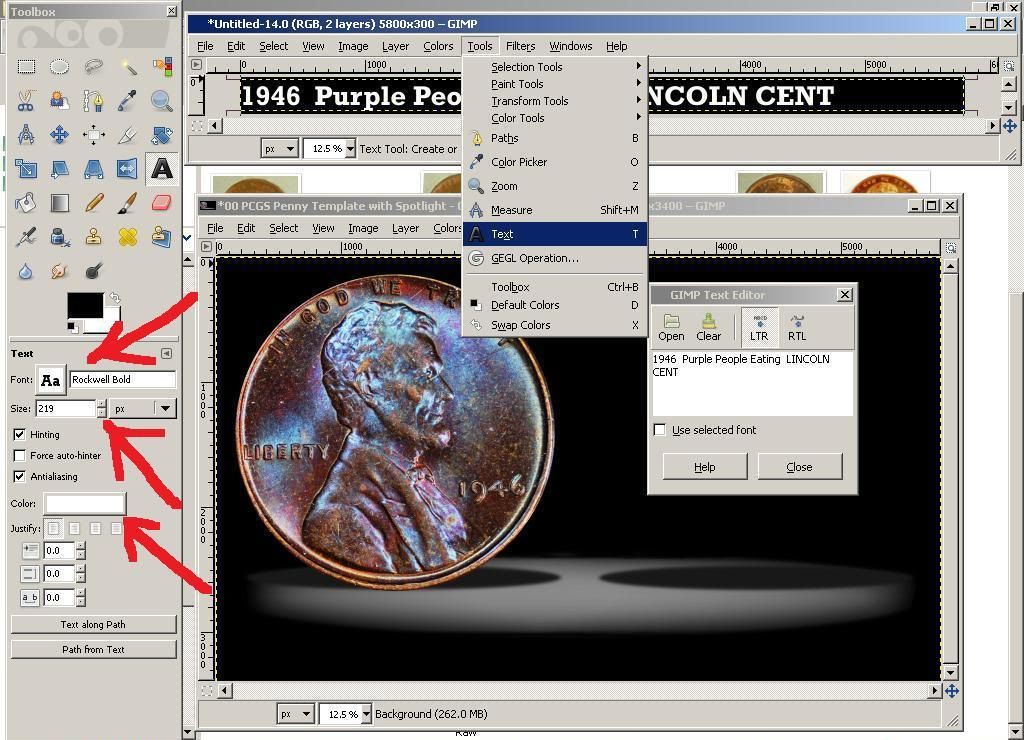
You can add text by selecting, tools- text or as I do, select the icon from the toolbox. choose font style, size and color.. I prefer to use a separate image and type text into it, copy visible and paste it into the template. Position and anchor accordingly. (a layer which includes a text block is how it should be done)
Cutting-The-Coin-Out-Of-Original-Image-In-Photoshop?

Cutting-The-Coin-Out-Of-Original-Image-In-Photoshop?

Cutting-The-Coin-Out-Of-Original-Image-In-Photoshop?


open - cut and paste the reverse of the coin into the template and File/Save As...


Cutting-The-Coin-Out-Of-Original-Image-In-Photoshop?


I don't have a shot of the reverse of this coin.. :(

Cutting-The-Coin-Out-Of-Original-Image-In-Photoshop?


Previously Banned Member
EyeEatWheaties's Avatar
United States
71 Posts
 Posted 11/27/2010  5:25 pm  Show Profile   Bookmark this reply Add EyeEatWheaties to your friends list Get a Link to this Reply
uhhhh what is causing the forum width to get destroyed?
Moderator
Learn More...
SsuperDdave's Avatar
United States
23522 Posts
 Posted 11/27/2010  6:54 pm  Show Profile   Bookmark this reply Add SsuperDdave to your friends list Get a Link to this Reply

Quote:
uhhhh what is causing the forum width to get destroyed?


Big images do that in some browsers here.

Me, I use right-click for tool choices in the Gimp. Like you said, there's a lot of different ways to do it. As a contrast to your Cut->Paste as New Image method, I right-click->Image->Crop to Selection. Bang.
Pillar of the Community
chequer's Avatar
Canada
4227 Posts
 Posted 11/27/2010  8:59 pm  Show Profile   Bookmark this reply Add chequer to your friends list Get a Link to this Reply
Oh, I can't wait to try this! Thanks EyeEatWheaties you should get some kind of bonus treat for this! I'll post how I make out tomorrow
Previously Banned Member
EyeEatWheaties's Avatar
United States
71 Posts
 Posted 12/07/2010  01:03 am  Show Profile   Bookmark this reply Add EyeEatWheaties to your friends list Get a Link to this Reply
You got it chequer! good job!

the spot light was created in similar fashion of a cut and paste by creating an ellipse, filling it with a light gray color and then using the blend and gradients and then stretched with the transform till it look right. I also used a bit of erasing that was nearly transparent. it took a little while of trial and error.. the undo button is generous! Once you have it save it as a template.
Pillar of the Community
Dar's Avatar
United States
1476 Posts
 Posted 05/15/2015  12:22 pm  Show Profile   Bookmark this reply Add Dar to your friends list Get a Link to this Reply
This is a FANTASTIC post. Thank you all very much!
Valued Member
Wizzy1's Avatar
United States
430 Posts
 Posted 05/17/2015  10:18 pm  Show Profile   Bookmark this reply Add Wizzy1 to your friends list Get a Link to this Reply
Is Eyeeatwheaties still around the forum? I would love to get that template from Him/her.
Pillar of the Community
Dar's Avatar
United States
1476 Posts
 Posted 05/18/2015  4:42 pm  Show Profile   Bookmark this reply Add Dar to your friends list Get a Link to this Reply
I don't know if the op is still around. But, I got down part of the process. If I can remember it all the time now. You can check it out in my thread. "Found this set up. Opinions please. "
Edited by Dar
05/18/2015 4:43 pm
  Previous TopicReplies: 29 / Views: 10,277Next Topic
Page: of 2

To participate in the forum you must log in or register.


Disclaimer: While a tremendous amount of effort goes into ensuring the accuracy of the information contained in this site, Coin Community assumes no liability for errors. Copyright 2005 - 2026 Coin Community Family- all rights reserved worldwide. Use of any images or content on this website without prior written permission of Coin Community or the original lender is strictly prohibited.
Contact Us  |  Advertise Here  |  Privacy Policy / Terms of Use

Coin Community Forum © 2005 - 2026 Coin Community Forums
It took 0.42 seconds to rattle this change. Forums



