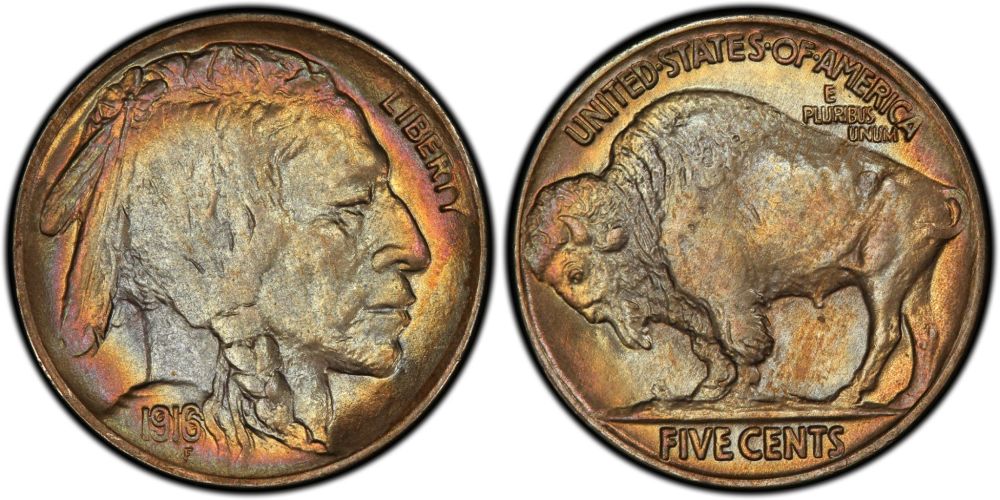
Steele - It's not rocket science, but you have to practice and learn to do it if you want to really participate on the forum.
Basically, these are the steps:
1) Take pic or scan and load it on your computer.
2) Go to the thread you want to post on and click "Reply to Topic".
3) A blank screen will pop up. Scroll down and click "Image Optimizer".
4) When the Optimizer screen comes up, click "Browse", which will take you to your photo file.
5) Find the pic you want, click on it, and click "Open".
6) This takes you back to the Optimizer screen, click Upload Image again. Your photo will appear.
7) Scroll down until you see the boxes that allow you to alter the size and sharpness of your photo. Make your changes, click "Apply Changes", and review the revised pic. If you're satisfied, right click and save this new pic to your photo file using a new title.
8) Return to the Reply to Topic screen, scroll down and click "Upload Image".
9) The Upload Photo screen will appear. Click "Browse".
10) Find your revised pic, click on it, and click "Open". This will return you to the Upload Image screen.
11) Click on the box saying "Upload File to Post." A red warning will appear if the pic is too large, in which case go back to step 5 and start again on the Optimizer screen by selecting your original pick and work on it further.
12) Once you finally get a green "Congratulations" message on a revised pic, click the "Upload File to Post" box and the system will automatically take you back to the original Reply to Message screen and the pic reference data should appear in the field. Click "Preview" below to see if you're satisfied. If you are, then move up and add your text above the pic data, click "Post New Reply" and you're home.
It takes practice, but in time, you'll just sail through all this. Many younger and computer-savvy members no doubt have their short-cuts, but this is how I do it and it works very well.








 Posted 03/22/2017 4:51 pm