Coin Community Family of Web Sites Join Thousands of Coin, Bullion, & Money Collectors
300,000 items to help build your collection! Royal Canadian Mint products, Canadian, Polish, American, and world coins and banknotes. Vancouvers #1 Coin and Paper Money Dealer Specializing in Modern Numismatics Royal Estate Auctions - $1 Coin AuctionsCoin, Banknote and Medal Collectors's Online Mall Join Thousands of Coin, Bullion, & Money Collectors


Username:
Password:
Save Password
Forgot your Password?


This page may contain links that result in small commissions to keep this free site up and running.

Welcome Guest! Registering and/or logging in will remove the anchor (bottom) ads. It's Free!

Circular Crop Of Coins

To participate in the forum you must log in or register.
First Page  Showing last 15 replies.
Author Previous TopicReplies: 19 / Views: 6,288Next Topic Page 2 of 2
Bedrock of the Community
United States
10045 Posts
 Posted 02/23/2014  3:31 pm  Show Profile   Bookmark this reply Add DVCollector to your friends list

Quote:
Photoshop Elements is pretty cheap and has a circle crop.
Yes--basically that's the key feature you need--a circular selection tool that lets you isolate the coin, and delete everything else you don't want. By isolating the coin, you can also adjust its color-balance and brightness levels without changing the background.

I use Photoshop CS6 to accomplish this. It's got a really extensive set of features/tools that come in handy too. But I think PS Elements would work just fine for coin pictures.

Valued Member
440 Posts
 Posted 02/23/2014  3:52 pm  Show Profile   Bookmark this reply Add CherreePicker to your friends list
"If your coin is well-centered on the sensor, you can use DPP to make the area outside the coin darker or lighter (all the way to black or white)."

How do you do this?
Valued Member
440 Posts
 Posted 02/23/2014  3:59 pm  Show Profile   Bookmark this reply Add CherreePicker to your friends list
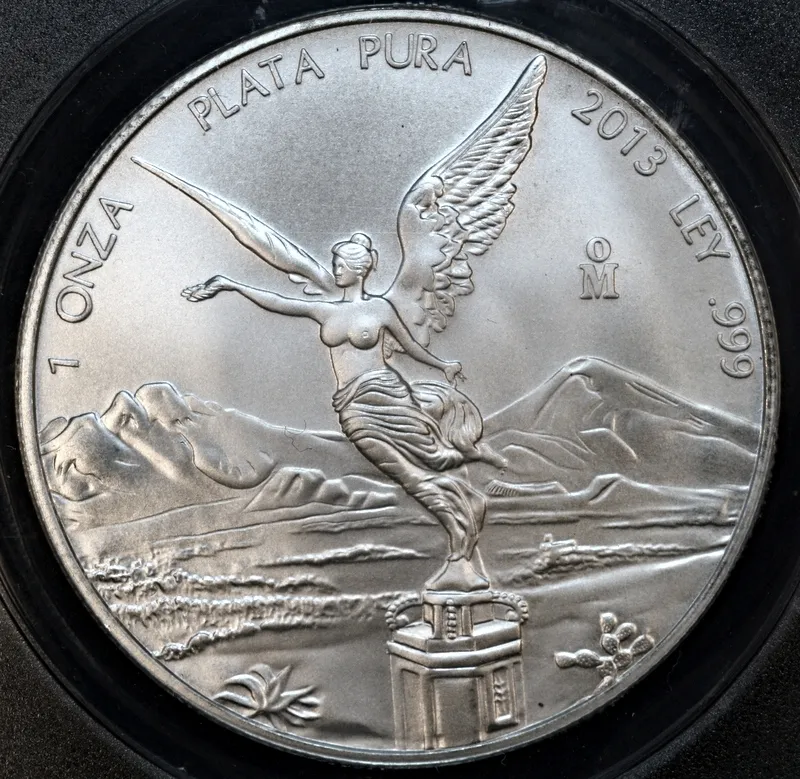
For instance how would this one look using that technique?

Circular-Crop-Of-Coins
Pillar of the Community
Learn More...
United States
4594 Posts
 Posted 02/23/2014  4:50 pm  Show Profile   Bookmark this reply Add BStrauss3 to your friends list
See that's why I like Paint.Net:

1. Open
2. "S" for elipse/circle select
3. click & drag to create a rough circle around the coin
4. Press M twice to move into "Move selection" mode
5-9. Zoom in and go max left, right, top, bottom in sequence to adjust the edge points
10. Click crop.

Save

After the 2nd or 3rd time it takes longer to describe than do...


Circular-Crop-Of-Coins
-----Burton
50+ year / Life / Emeritus ANA member (joined 12/1/1973)
Life member: Numismatics International, CONECA
Member: TNA, FtWCC, NETCC, EveryCountry (online) coin club
Owned by three cats and a wife of 40+ years (joined 1983)

Author: 3rd Edition of the Sample Slabs book, https://www.sampleslabs.info/
Bedrock of the Community
United States
10045 Posts
 Posted 02/23/2014  4:52 pm  Show Profile   Bookmark this reply Add DVCollector to your friends list
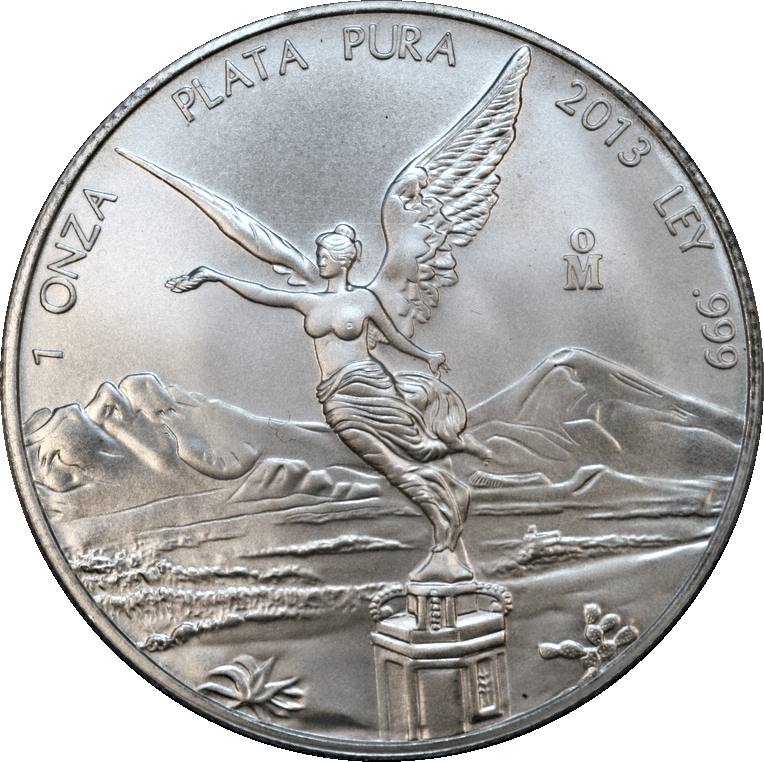
How about a quick demo of a crop done in Photoshop?
This took all of 5 minutes; the work includes:
-Coin out of round, ie not exactly perpendicular to lens axis--adjusted.
-A few highlights blown out (overexposed); toned down
-Details sharpened slightly
-given the warmer cast that silver exhibits
-Cropped (to personal taste) and white background added--black is just as easy.

Circular-Crop-Of-Coins
Edited by DVCollector
02/23/2014 9:27 pm
Pillar of the Community
United States
627 Posts
 Posted 02/23/2014  5:03 pm  Show Profile   Bookmark this reply Add brg5658 to your friends list
GIMP has a nice circular marquee tool. It also has full "layer" type capabilities like Photoshop.
Valued Member
440 Posts
 Posted 02/23/2014  5:49 pm  Show Profile   Bookmark this reply Add CherreePicker to your friends list
Downloaded GIMP without any issues. THanks. Where is the circular marquee tool?
New Member
United States
15 Posts
 Posted 02/23/2014  8:28 pm  Show Profile   Bookmark this reply Add blu62vette to your friends list
The difference in the crops make PS or another program worth the money. The paint.net crop is pixelated.
Pillar of the Community
Learn More...
United States
4594 Posts
 Posted 02/23/2014  9:18 pm  Show Profile   Bookmark this reply Add BStrauss3 to your friends list
No, the Paint.Net crop is pixelated because I used a screen grab and had to decrease the quality to fit into 100Kb
-----Burton
50+ year / Life / Emeritus ANA member (joined 12/1/1973)
Life member: Numismatics International, CONECA
Member: TNA, FtWCC, NETCC, EveryCountry (online) coin club
Owned by three cats and a wife of 40+ years (joined 1983)

Author: 3rd Edition of the Sample Slabs book, https://www.sampleslabs.info/
Moderator
Learn More...
United States
23522 Posts
 Posted 02/24/2014  03:43 am  Show Profile   Bookmark this reply Add SsuperDdave to your friends list
Aw, heck. Blu62vette is here. You gotta up your game, guys; he's the best there is with coin photography.
Valued Member
United States
146 Posts
 Posted 02/24/2014  12:09 pm  Show Profile   Bookmark this reply Add coffeecup57 to your friends list
What's the cost of photoshop elements?

I bought PS Elements 11 off Amazon last year for $75,no shipping,they send a key that lets you download directly off the internet.There were already a newer version out when I bought it.Has a slight learning curve,but once you get the hang of the basics,its a great piece of software.

regards
coffeecup57
Valued Member
United States
70 Posts
 Posted 02/24/2014  12:40 pm  Show Profile   Bookmark this reply Add JeffMTampa to your friends list
I would like to be able to combine the circle cropped images of the obverse & reverse into a single file with a black (or color) background. Currently I'm using Paint.net for photo editing, but I haven't figured out how to do this. Anyone know? If not, can I do that sort of thing in PS Elements?

Does anyone use PS Lightroom? What can it do that Paint.net won't?
Pillar of the Community
United States
1391 Posts
 Posted 02/24/2014  1:04 pm  Show Profile   Bookmark this reply Add allranger to your friends list
Photoscape has a simple circle crop funciton: http://www.photoscape.org
Pillar of the Community
United States
627 Posts
 Posted 02/25/2014  1:45 pm  Show Profile   Bookmark this reply Add brg5658 to your friends list
I posted these instructions a couple years ago on another forum, and they may be useful here. These are instructions specific for using GIMP to edit and crop coin images, and creating composite side-by-side coin images.

1. Open one of your coin pictures in GIMP. Once It's opened in GIMP, select the oval (ellipse) tool from the toolbox.
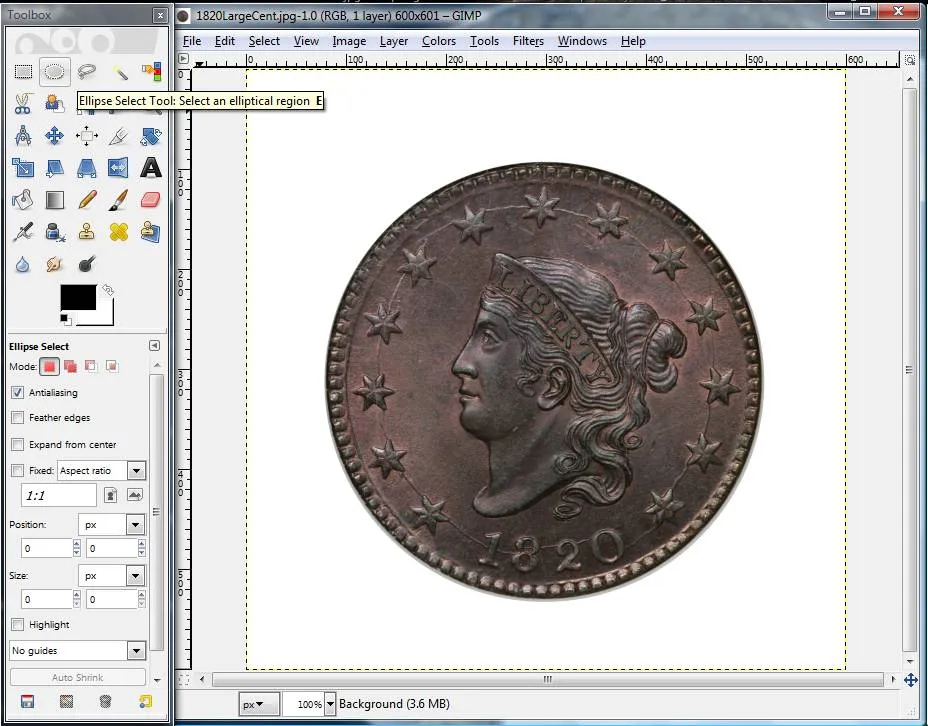
Circular-Crop-Of-Coins

2. Once you have selected the oval tool, roughly select just the circular area of the coin by clicking your mouse and dragging an oval shaped selection area. It doesn't have to be exact because in the next step you can "refine" it to match the edges of the coin perfectly.
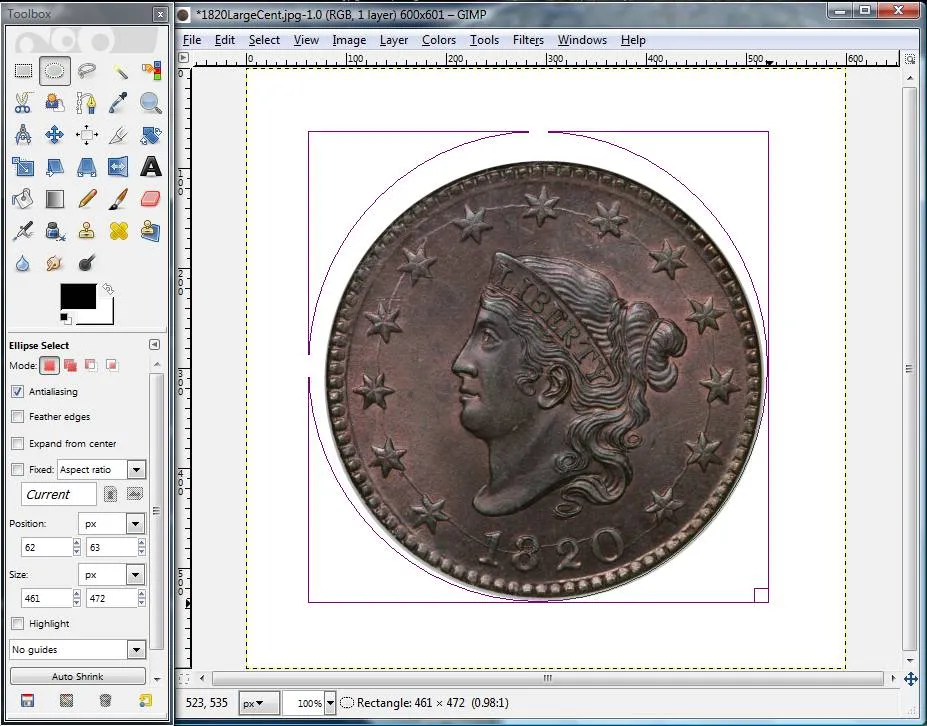
Circular-Crop-Of-Coins

3. Now, after you have a rough oval selection, you can refine each of the four sides by using your mouse. Little boxes will appear when you hover inside of the selected box but near an edge. Just click and drag the oval to match the coin shape. Take note of the size of the oval you have selected in number of pixels. You can find the size by looking at the ruler along the top, or while you have the ellipse selection highlighted you can see the dimensions below the toolbox on the lower left. The total image size in this example is about 600 x 600 pixels, but the coin size itself is about 450 x 450 pixels (441 x 442 to be exact). This information will come in handy in a couple steps.

Circular-Crop-Of-Coins

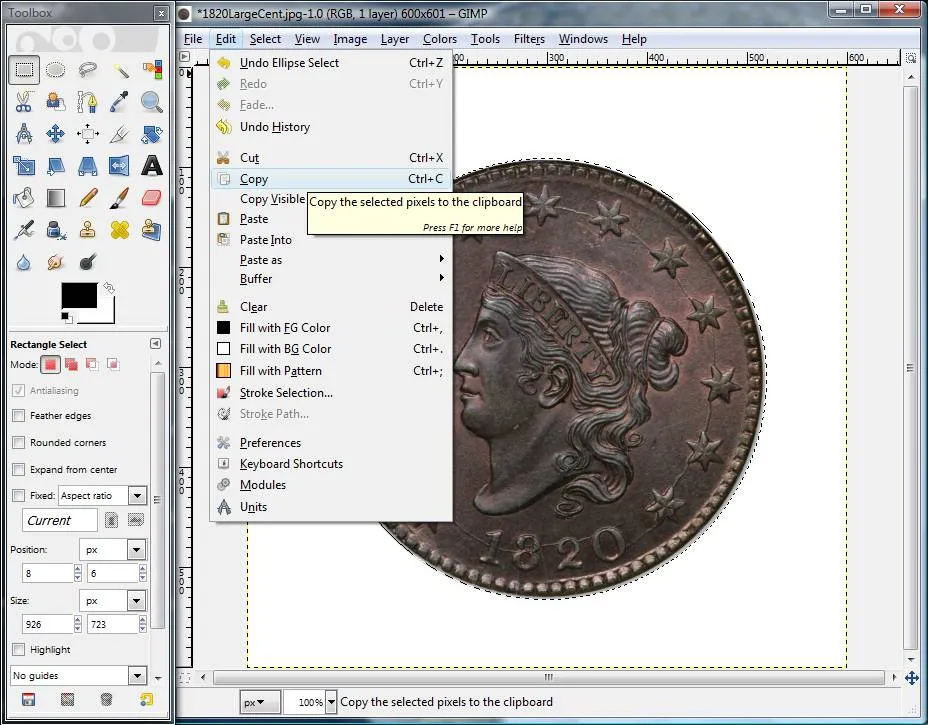
4. Now that you have the coin selected with the oval tool, go to "Copy" in the menu to copy it to the clipboard.
Circular-Crop-Of-Coins

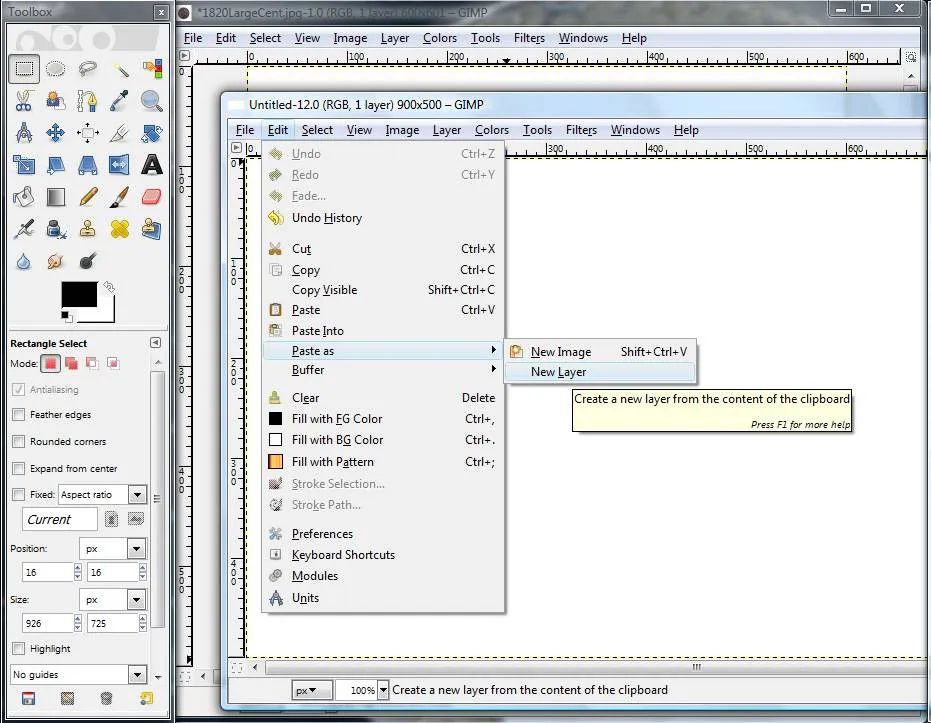
5. Now that the coin image is copied onto the clipboard, you want to create a new place to copy it. Go to the File menu and choose to create a new image. It will ask you how big to make the new image. Since you know how big one side of the coin is (about 450 pixels square) and since you want to put two pictures side by side, you can choose something like 900 wide x 500 height pixels.

Circular-Crop-Of-Coins

6. The new file you created is now blank. So, you want to paste the image you have in memory into the new background. You do this by going to the menu called "Paste as New Layer".
Circular-Crop-Of-Coins

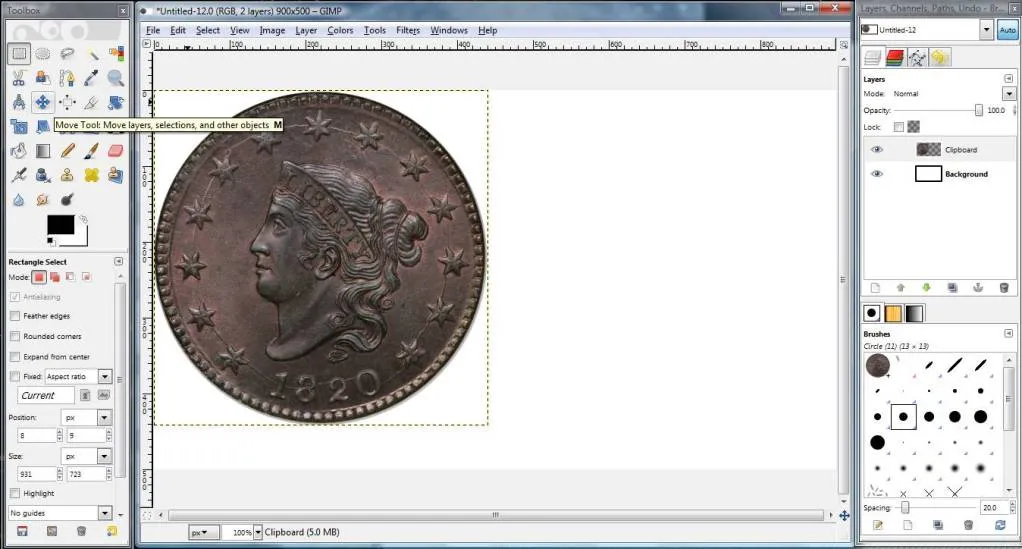
7. Your coin should show up in the new image with a box around it. Notice that in your "Layers" view (on the right in my picture) you now see two layers (Background and Clipboard in my example). To move the obverse image of the coin around, click on the toolbox icon for the 4-way arrows and then click on which layer you want to move (Clipboard) and then you can click on the coin picture and move it around.
Circular-Crop-Of-Coins

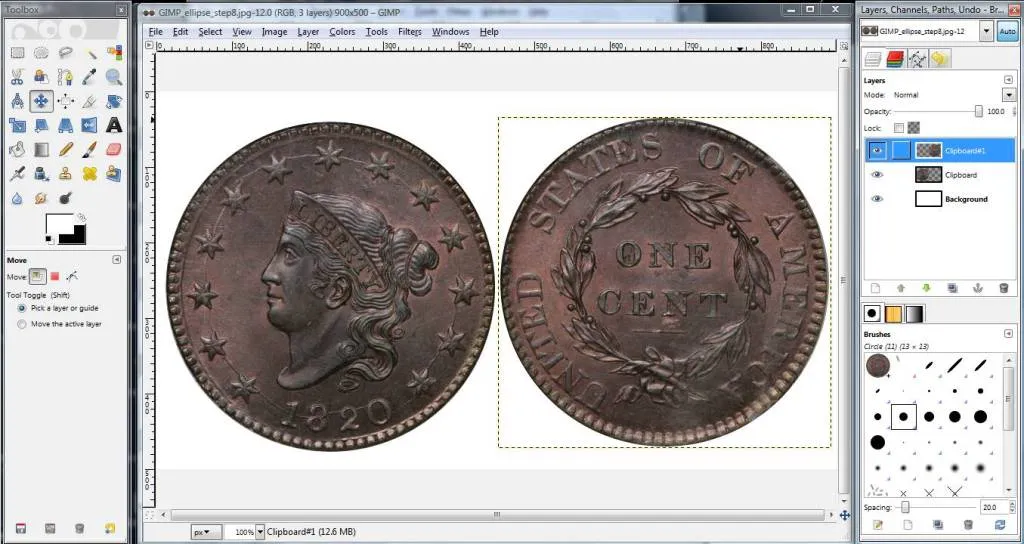
8. Now that you have positioned the Obverse, do the same process of steps 1-4 and 6-7 for the reverse. Now you should have both the obverse and reverse side-by-side in the picture. Notice that each time you paste a new layer it shows up separately on in the Layers box on the right. To move a layer, first you have to select the layer, then the 4-way arrow tool, and then you can click on the layer and move it.
Circular-Crop-Of-Coins

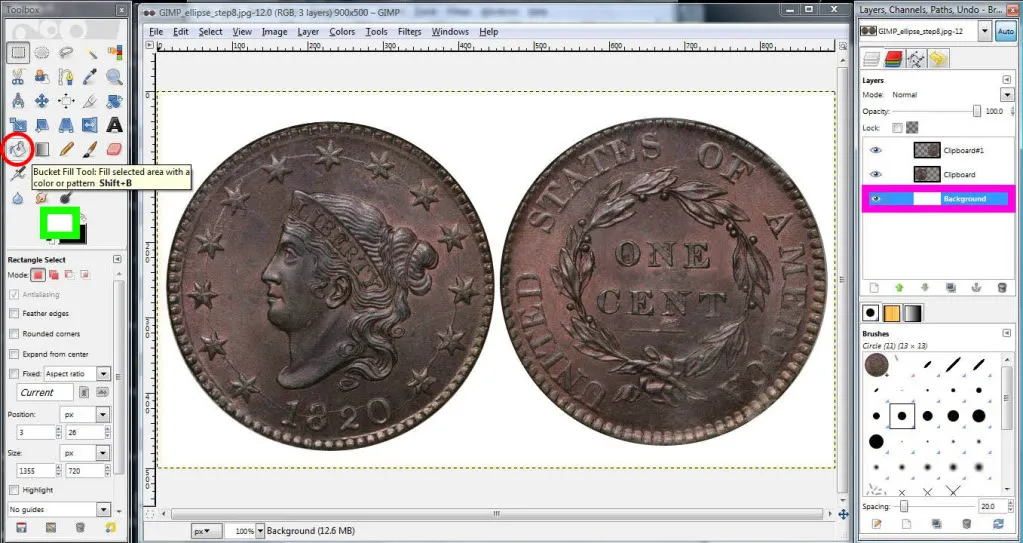
9. If you wish to change the color of the background, there are three steps to change the background color. First, you have to click the background layer on the menu (it is boxed in bright pink in my attached picture so you can find it). Second, you want to choose the "paint bucket" tool. It is circled in red on the left in my screen shot. Third, you want to change the background color you have selected. I put a green rectangle around where you need to click. When you click on that box, a window will pop up and you can pick which color you want. Finally, when you have selected the background, have the paint bucket tool, and have picked a color, you can simply click anywhere in your coin image and the background will change to the color you chose.
Circular-Crop-Of-Coins

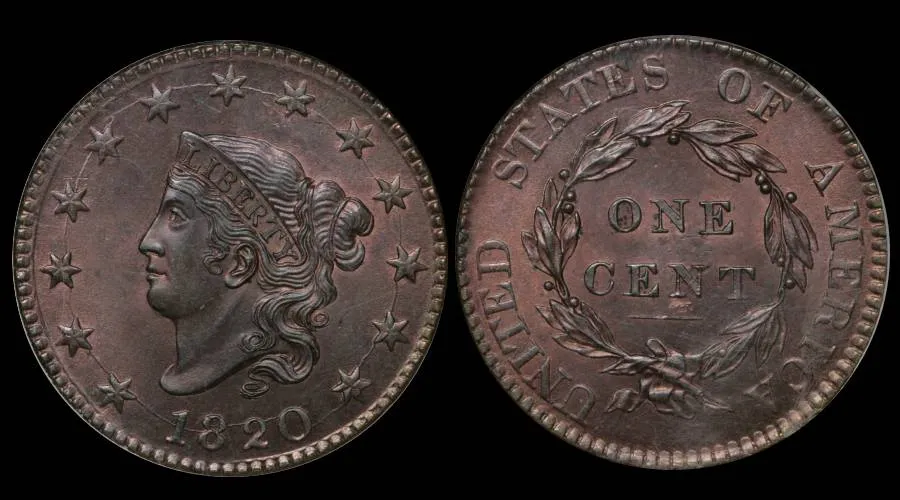
10. Finally, you have your completed image, and you can save it as a JPEG or whatever other type of file you would like to.

Circular-Crop-Of-Coins
Edited by brg5658
02/25/2014 1:48 pm
Valued Member
440 Posts
 Posted 02/25/2014  7:25 pm  Show Profile   Bookmark this reply Add CherreePicker to your friends list
Thank you BRG. I was trying to figure this out but I may have died from "old age" before this occured. You are a life saver :)
Page 2 of 2   Previous TopicReplies: 19 / Views: 6,288Next Topic Page 2 of 2
First Page  Showing last 15 replies.
To participate in the forum you must log in or register.


Disclaimer: While a tremendous amount of effort goes into ensuring the accuracy of the information contained in this site, Coin Community assumes no liability for errors. Copyright 2005 - 2026 Coin Community Family- all rights reserved worldwide. Use of any images or content on this website without prior written permission of Coin Community or the original lender is strictly prohibited.
Contact Us  |  Advertise Here  |  Privacy Policy / Terms of Use

Coin Community Forum © 2005 - 2026 Coin Community Forums
It took 0.37 seconds to rattle this change. Forums