| Author |
 Replies: 14 / Views: 1,903 Replies: 14 / Views: 1,903 |
|
|
Pillar of the Community
United States
1721 Posts |
How do I get my pics side by side for comparison instead of top and bottom?
|
|
|
|
Pillar of the Community
United States
4132 Posts |
To do it reliably, you have to merge them into one image.
|
|
Moderator
 United States
14463 Posts |
I just tested it out, and was able to have side by side. If the image coding are on the same line, it should work it their window is large enough. For me, these are side by side on full screen window, stacked on smaller windows.EDIT - the menu on the left makes the display size too small  Edited by Fuzzy317
01/21/2013 10:31 am
|
|
Pillar of the Community
 United States
1721 Posts |
Quote:
To do it reliably, you have to merge them into one image. Yes, I know. How is this accomplished? |
|
Moderator
United States
23522 Posts |
That depends on what postprocessing software you're using; the procedure differs.
|
|
Pillar of the Community
United States
1721 Posts |
Dave,
I have and currently use Paint. Is this acceptable?
|
|
Moderator
United States
23522 Posts |
Quote:
I have and currently use Paint. Is this acceptable? I just opened Paint as an experiment - never tried it before with Paint - and was able to merge two images. Here's what I did: First, have your two images ready and saved at the size you know you'll be posting. Keep in mind, you'll want either your CCF Gallery (you don't have one, but you're eligible, it's free and I'll arrange for you to get one) or offsite hosting. The standard forum upload won't let you post an image like this at any usable size. The CCF Gallery limits you to a maximum of 800 pixels in any direction, so with it a merged image of two coins can only be a maximum of about 400 pixels tall and that's iffy for grading estimates. This is one problem with two-coin merges - to be gradable they're going to be pretty big. So, you have your two images ready to use. Open a new, blank canvas in Paint. Drag the horizontal and vertical edges (grab the center, not the corner) to a size equal to your combined images. Do "Paste From" to grab the first (obverse) image; it'll place itself appropriately at the left end of your canvas. Do a second Paste From to grab the second (reverse) image; when it hits the canvas it will be "Selected" and you can immediately move it to the right side of the canvas. Save the result, and you're in business. That's all it takes. |
|
Pillar of the Community
United States
1721 Posts |
Thanks Dave,
You were a huge help. What was happening was every time I'd put the second picture in the box, the image would lay over the top of the first image. It took me a little time to figure out that I had to drag the second image off the first one to get it along side the first image. But this rotted gray matter brain of mine finally solved the problem. Thanks again.
|
|
Moderator
United States
23522 Posts |
Yeah, the key is having the box sized right before you dump anything into it.
|
|
Valued Member
United Kingdom
195 Posts |
As for photos merging cutting/cropping I use http://www.gimp.org it is like the 500$ Adobe Photoshop but for free! |
|
Moderator
United States
23522 Posts |
I use the Gimp myself, exclusively, but for someone who isn't already expert with postprocessing software it has a pretty steep learning curve.
|
|
Valued Member
Canada
453 Posts |
Glad I saw this topic. Had wondered about it, but hadn't tried it. Used paint for this, then the image optimizer. Thanks, guys! 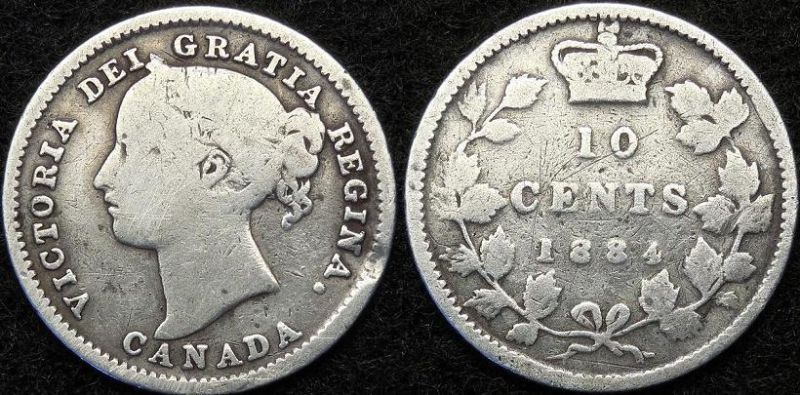 |
|
Pillar of the Community
United States
7841 Posts |
I use Paint on my side-by-side stiched images and photobucket compresses it and makes it fit;  this image is 700 x 475 pixels at 1183092 bytes, compressed to fit on CCF, working around the 100K image limit. When you click to enlarge it is 1024 x 694 pixels at 1183092 bytes. The original merged BMP in Paint is alot bigger! Edited by oih82w8
02/05/2013 4:02 pm
|
|
Moderator
United States
23522 Posts |
Quote:
The original merged BMP in Paint is alot bigger! Bitmaps are porky by nature; best to work in .jpg as soon as possible. And keep in mind, an uncropped .jpg will itself be larger than the original if not saved at lesser quality after postprocessing. |
|
Valued Member
United States
146 Posts |
Put a semicolon ; at the end of the first imgage command line. After entering the second image command line back it up till it begins at the end of the first command line.Just past semicolon. This will force the photos side by side. I tried to type example on how it should look' but it weirded out on me and I had to delete it. This works for photos stored on this website.I assume uploaded photos from other storage uses same command lines,it should work. 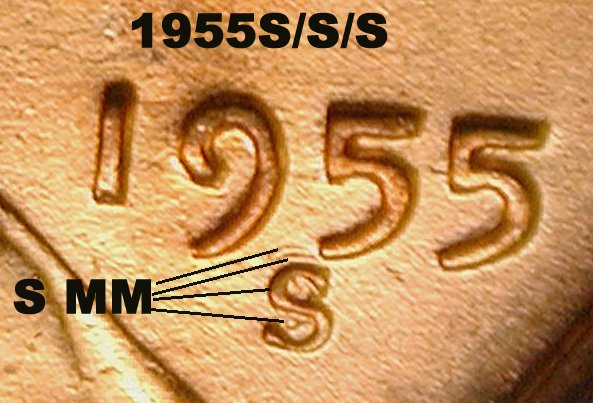 ; 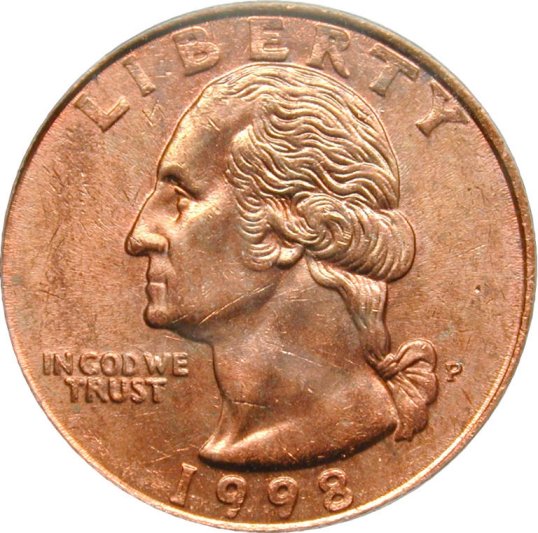 regards coffeecup57 |
| |
Replies: 14 / Views: 1,903 |
|







 Posted 01/21/2013 10:30 am





