Coin Community Family of Web Sites Join Thousands of Coin, Bullion, & Money Collectors
Coin, Banknote and Medal Collectors's Online Mall Specializing in Modern Numismatics Vancouvers #1 Coin and Paper Money Dealer Join Thousands of Coin, Bullion, & Money Collectors 300,000 items to help build your collection! Royal Estate Auctions - $1 Coin AuctionsRoyal Canadian Mint products, Canadian, Polish, American, and world coins and banknotes.


Username:
Password:
Save Password
Forgot your Password?


This page may contain links that result in small commissions to keep this free site up and running.

Welcome Guest! Registering and/or logging in will remove the anchor (bottom) ads. It's Free!

Recommended Workflow

To participate in the forum you must log in or register.
Author Previous TopicReplies: 4 / Views: 1,903Next Topic  
Pillar of the Community
Learn More...
United States
4038 Posts
 Posted 05/10/2017  10:57 am Show Profile   Bookmark this topic Add rmpsrpms to your friends list Get a Link to this Message Number of Subscribers
I wrote out a detailed workflow for a potential system client and thought I'd publish it here as well.

- Turn on Camera
- Set Mode dial to Av (Aperture priority)
- Turn on Live View
- Set ISO to 100; Picture Style to Faithful;
- Place the coin on Velvet Tansfer Disk and place on the stage roughly in center of screen (note: the grid function can be turned on to help with coin placement. I use 20x20 grid)
- Adjust the magnification and focus until it nearly fills the vertical space (I zoom to 90%) (note: this is a manual and iterative process for each different coin size)
- Remove the Velvet Transfer Disk and coin
- Place a grey reference (Grey backside of velvet transfer disk, 18% grey card, white index card, white paper, etc) on the stage
- Perform Manual White Balance (click on the eyedropper and then click eyedropper near center of the Live View image)
- Snap a shot of the white balance reference
- Digital Photo Professional will open and the new image will show up in the main window
- Open the image and check the RGB values in various places across the image. If any R, G or B is higher across image, adjust the WB shift and repeat process until RGB are equal as possible.
- Replace the Velvet Transfer Disk and coin
- Move the Disk + coin to the center of the screen and adjust rotation (note: this is the function of the XY stage, or manually moving the coin if no XY stage. Rotate the camera to "rotate" the coin on-screen)
- Move the white zoom box to the optimum area of the coin for critical focusing (this is different for each type of coin)
- Hit the zoom button and a zoom window will open
- Critically-focus on a middle height feature, then check quality of focus on the highest and lowest features. Adjust aperture if depth of field is insufficient and you're single-image shooting.
- Close the zoom window
- Move the zoom box so it's encompassing the brightest area of the coin. This forces metering on this area.
- If brightest area still appears to be over-exposed, adjust the Exposure Compensation until there is no over-exposure
- If the shadows are too dark, reduce contrast
- Snap the shot
- Open the image and adjust Levels, Saturation, Sharpening, and Cropping to taste
- Use Batch Process function to downsize the image to desired publishing size (I recommend integer 2, 3, 4, etc ratio downsizing to maintain sharpness)
- Review final image before publishing
Contact me for photographic equipment or visit my home page at:
http://macrocoins.com
Edited by rmpsrpms
05/10/2017 3:02 pm
Valued Member
United States
441 Posts
 Posted 05/20/2017  9:47 pm  Show Profile   Bookmark this reply Add andywoj00 to your friends list Get a Link to this Reply

Quote:
- Open the image and check the RGB values in various places across the image. If any R, G or B is higher across image, adjust the WB shift and repeat process until RGB are equal as possible.


Ray,

Where is the WB shift done to equalize the RGB values? What should the values be and how is it done?

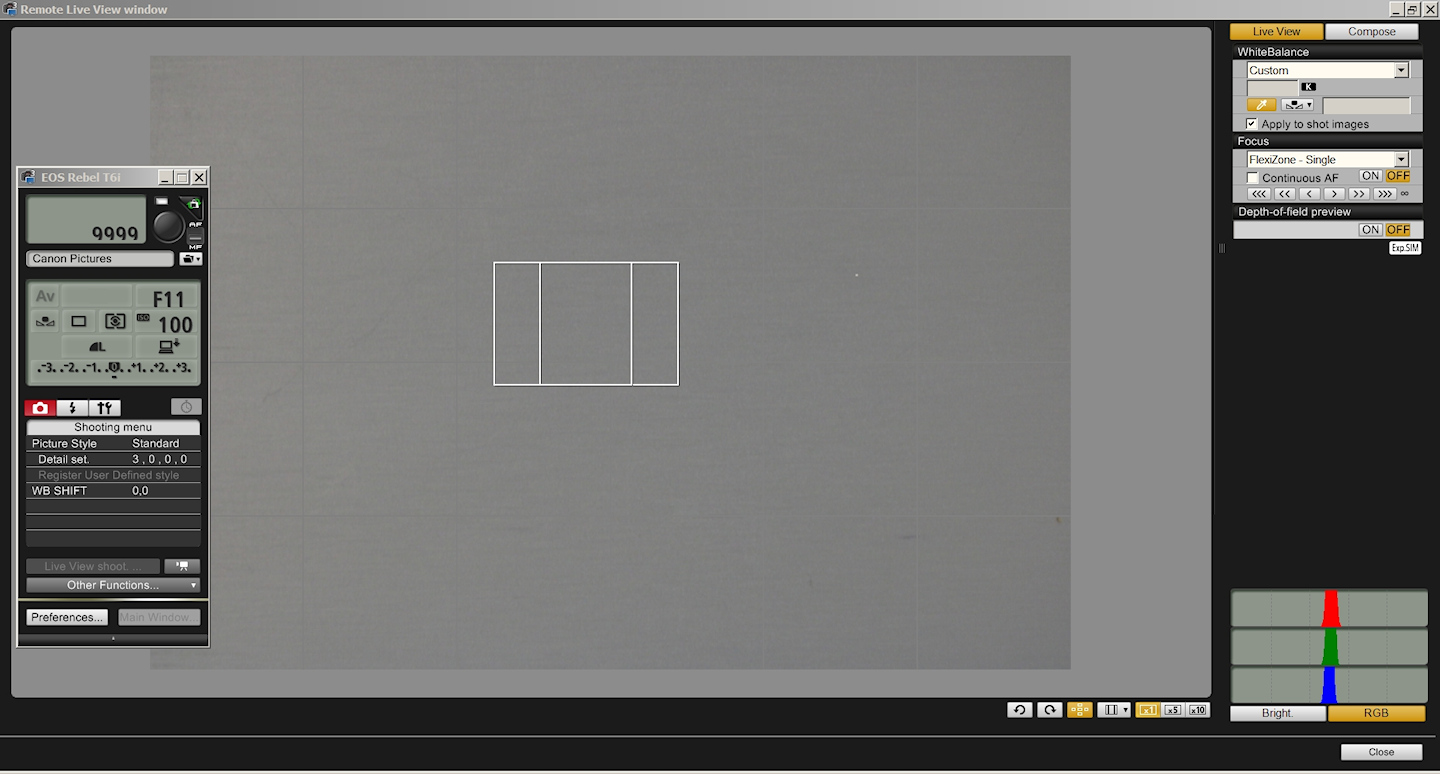
Can you just look at the histogram in Liveview as shown below to get the same info and adjust your exposure comp to get RGB centered? 18% graycard shown.

Recommended-Workflow
Pillar of the Community
Learn More...
United States
4038 Posts
 Posted 05/20/2017  9:58 pm  Show Profile   Bookmark this reply Add rmpsrpms to your friends list Get a Link to this Reply
Hi Andy...below where it says "shooting menu" you see the WB SHIFT. Click it and make any needed adjustments. Based on your histogram, Red and Green channels are balanced, but Blue needs a small boost.
Contact me for photographic equipment or visit my home page at:
http://macrocoins.com
Pillar of the Community
mcshilling's Avatar
Canada
9162 Posts
 Posted 05/21/2017  09:59 am  Show Profile   Bookmark this reply Add mcshilling to your friends list Get a Link to this Reply

Quote:
(I recommend integer 2, 3, 4, etc ratio downsizing to maintain sharpness)


I have been trying to figure this one out and can't, please explain.
Pillar of the Community
Learn More...
United States
4038 Posts
 Posted 05/21/2017  12:42 pm  Show Profile   Bookmark this reply Add rmpsrpms to your friends list Get a Link to this Reply
I use a T2i as well as XS cameras. The T2i has a resolution of 5184x3456 pixels, while the XS is 3888x2592. The original size images are too large for web publishing, so need to be downsized. I like to publish at a size between 600 and 1000 pixels tall, to have a large enough image to view details but not so large as to go beyond a 1080P monitor. So I will downsize the T2i image by 4x, to 1296x864, and the XS by 3x, to the same size, 1296x864. In the end you can't tell which camera I took the shot with.

You can crop the image during downsizing if you want it to be square, or to be a particular size. Let's say you want to crop to 800x800, which is what most folks recommend for web publishing. You would then crop the original T2i image to 3200x3200, or the XS image to 2400x2400, and then downsize both to 800x800. I like to keep a little area around the coin so that I can do some cropping if desired. I do a 20x20 grid, and frame the coin to 18x18, so that I can crop/downsize to 800x800 and still have just a little bit around the coin.

In the above examples, I describe integer downsizing of 4x on the T2i and 3x on the XS. This is preferred as it gives the best final image sharpness. If you do non-integer donwsizing, for example to 1200x800, the final image won't be as sharp. You can get back some of this with extra sharpening, but then the image isn't as natural looking.

Try it for yourself to see what the effect is. You may not have any issue with it.
Contact me for photographic equipment or visit my home page at:
http://macrocoins.com

  Previous TopicReplies: 4 / Views: 1,903Next Topic  

To participate in the forum you must log in or register.


Disclaimer: While a tremendous amount of effort goes into ensuring the accuracy of the information contained in this site, Coin Community assumes no liability for errors. Copyright 2005 - 2026 Coin Community Family- all rights reserved worldwide. Use of any images or content on this website without prior written permission of Coin Community or the original lender is strictly prohibited.
Contact Us  |  Advertise Here  |  Privacy Policy / Terms of Use

Coin Community Forum © 2005 - 2026 Coin Community Forums
It took 0.3 seconds to rattle this change. Forums