| Author |
 Replies: 13 / Views: 1,907 Replies: 13 / Views: 1,907 |
|
|
Pillar of the Community
Canada
4944 Posts |
I was checking a bunch of sites to try and find a good camera at a decent price, and I found a Canon Powershot S3 IS for $65. The camera is a bit older, but I was wondering if anyone knew if this coin would be able to take decent pictures of coins? I currently use a Canon Powershot A1000 IS, and I was wondering if I would see a big difference in quality? Both cameras are a few years old. This is the S3 IS, it comes with all the stuff shown in the picture, and the original box. (All for $65)  |
|
|
|
Moderator
 United States
23522 Posts |
I had an S2 IS before I got into dSLR territory, and it gave adequate results. My gut says that the S3 will be a better outdoor camera than the A1000, but no more than equal with coins. Its' larger lens and greater manual control is offset by the A1000's far-greater megapixel count and 2-year-newer processing brain in the camera.
|
|
Pillar of the Community
 Canada
4944 Posts |
OK, Thanks SuperDave. I am sort of glad to hear that, because the seller just told me that they sold the camera.
What would an affordable upgrade be, up from a A1000 IS? That is great for coin photography.
|
|
Moderator
United States
23522 Posts |
Quote:
What would an affordable upgrade be, up from a A1000 IS? That is great for coin photography. Quite frankly, I don't think there *is* an "affordable" upgrade for you. You are getting among the best results from a P&S camera that I've seen, as it is. I do not know your skill level with postprocessing software; if you haven't yet, I would suggest that the only thing you have left before venturing into dSLR territory is to find and master the Gimp, which is free. A remote possibility is to acquire some sort of camera similar to the S3, to which you can attach a Raynox magnifying lens or similar. That will buy you more distance from the camera to the subject, possibly allowing you to refine lighting technique. Given what you're already achieving, I don't know if it'd be a cost-effective "improvement." |
|
Pillar of the Community
Canada
4944 Posts |
OK, Thanks SuperDave. Lighting is one of the most difficult things for me to get right. The coin is usually to dark, or too light.
I have GIMP, and am quite familiar it (Not a pro, but better then average for sure). Most of my pictures, are not edited at all (except for cropping) I just take the picture, download it onto my computer, and away I go.
|
|
Moderator
United States
23522 Posts |
We'll use the "better" set of the 1861 Seated quarter you recently posted as the example for my suggestions. First, is that the full-size image, or did you downsize to post? If it's downsized, do this with the original-size (larger) image. Pull it into the Gimp, and apply 30% Sharpness and 10% Contrast. You can likely help your brightness problem by varying Levels; do this as the very first step if you're going to do it at all. For the coin referenced, I might take the levels down 10% - you may want to try it both ways. Run them up the flagpole, and see what you think. |
|
Pillar of the Community
Canada
4944 Posts |
I am not sure if the contrast was changed enough, what do you think? Original:  Updated:  |
|
Pillar of the Community
United States
4132 Posts |
I like the first one, the second looks over-sharpened.
You might have a little room to improve with some refinements to technique - I think the top of the coin is a little out of focus, so you might be able to get the coin more parallel with the camera. Beyond that, I don't know if you'd get a significant improvement without getting into the DSLR realm.
|
|
Moderator
United States
23522 Posts |
Odd. Your result seems entirely too pixelated. For comparison, I stole your original image from that post, and applied the same 30% Sharpen/10% Contrast. I then forced the size upward to match the dimensions of your new image. Here's the result. Original, same size: 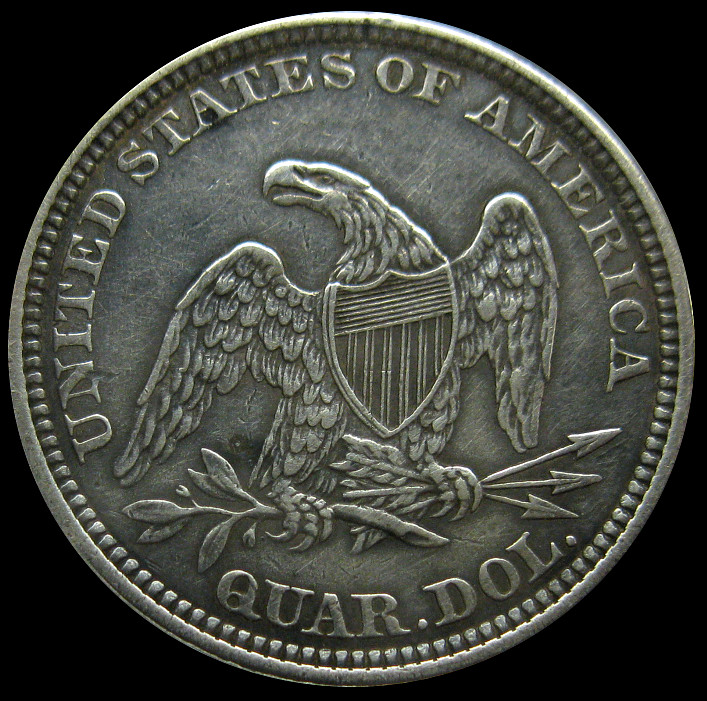 Forced to new dimension: 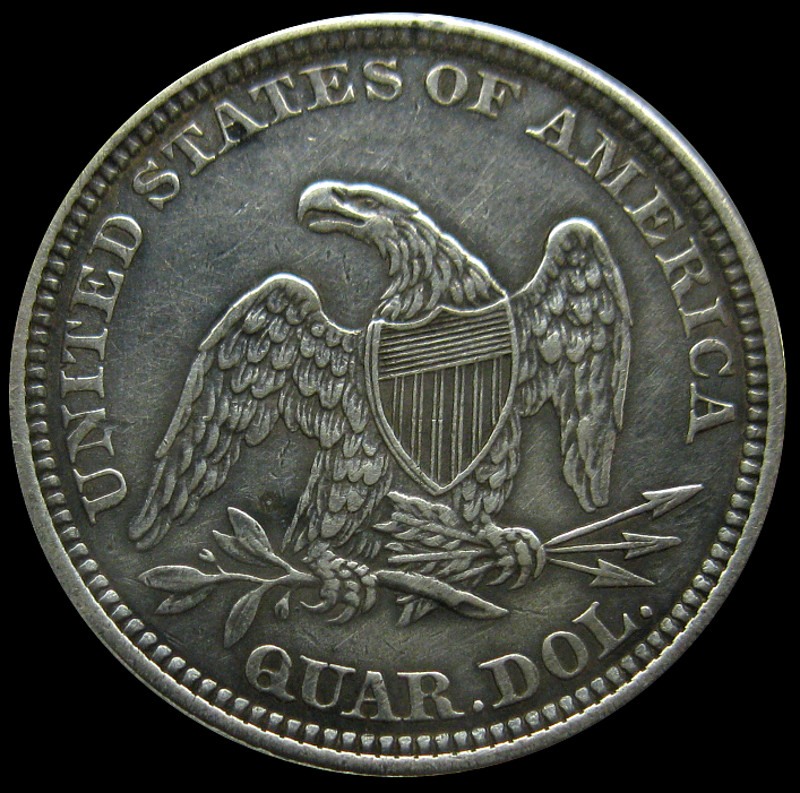 Let's talk about this. |
|
Pillar of the Community
Canada
4944 Posts |
Hmm, Your pictures are much better then mine. Can you show a screenshot of the way you edited the image?
|
|
Moderator
United States
23522 Posts |
It didn't matter which step came when, I tried both with similar results. Open it in the Gimp, apply 30% Sharpness and then 10% Contrast, either step first. Then Export the result to .jpg at 90% quality to reduce the final byte size of the resulting image. With the larger one, I enlarged it as the last step before exporting. I'm using Gimp 2.8, but I've been through many versions and both Sharpness and Contrast haven't changed much through any of them.
It's my habit to use the right-click context menus for my adjustments, but using the Toolbox Dock invokes the exact same functions.
|
|
Pillar of the Community
Canada
4944 Posts |
I don't see an option for changing Contrast and Sharpness by a percentage.  |
|
Moderator
United States
23522 Posts |
It may be my mental processes of quantifying what I'm doing. One click to the right on the Contrast scale says "10," and I call that "10%."
|
|
Pillar of the Community
Canada
4944 Posts |
Here is my newest updated version.  It still doesn't look quite as sharp, as the image you posted. |
| |
Replies: 13 / Views: 1,907 |
|









 Posted 09/13/2012 4:17 pm


