| Author |
 Replies: 15 / Views: 13,200 Replies: 15 / Views: 13,200 |
|
|
Pillar of the Community
Canada
4944 Posts |
Hello, I am trying to get good pictures using just my scanner. How should I do it? What resolution or other things should I change to get the best image? I would really appreciate any tips. Thanks! Just so you know what my scans look like, you can see my post here: https://goccf.com/t/70693 |
|
|
|
Moderator
 United States
23522 Posts |
This reply is going to presuppose you know certain things about file processing; it's stuff you need to know in order to maximize your results. Plain and simple. We can help with any areas which are unfamiliar for you. I've found, with my particular Epson V100 scanner, that 600dpi is the best compromise between detail and file size. Above that, and I get a big ol' file with no real additional detail which I end up sizing down anyways. Even at 600dpi - set for 24 bit color even if 32 is available, because with coins the additional detail isn't really relevant - the size of the file will still probably be too big to post even at Photobucket or the like. You're going to want to postprocess it in some software which allows you to save a .jpg at reduced quality, to make a same-size picture become a smaller file. Then again, you'll also want postprocessing to crop the excess white space anyways. I use the Gimp, which is freeware but not particularly intuitive for someone who isn't already familiar with graphics processing. There are other free softwares out there with lesser, but still sufficient, capabilities. I'm not trying to scare you here, just telling you like it is. Successful manipulation of images requires a level of knowledge. No such thing as a free lunch.  Depending on the quality of the software which came with your scanner, it may be more or less easy; there's at least one poster here (Ralph) who achieves very nice scanned results without having to get all geek-like. |
|
Pillar of the Community
 Canada
4944 Posts |
OK, thanks for the information. I already have GIMP and am very familiar with the software. So there is no problem there. The scanner I am using is a HP PSC 1350 all in one. And I am using the program "HP Gallery" I don't know how to change some of the settings that your telling me about. These are the setting that I can change. 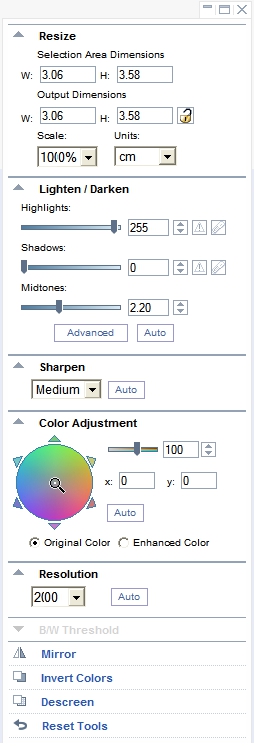 |
|
Moderator
United States
23522 Posts |
Excellent. The dpi setting will be your "resolution;" I'll assume the number is strictly in dpi but you might want to check documentation in case it's some arbitrary thing on their part. Is it possible to do the "resize" function with the mouse? That'll let you easily crop the scan to the coin itself, which will reduce the starting filesize and make the whole process less intensive. Since you know the Gimp, do "Lighten/Darken" and "Color Adjustment" on Auto. Chances are the Gimp can handle that stuff better than the HP software if it comes to it. I'd stay with "Medium" sharpen as well. Here's an experiment: I've grabbed a Morgan and scanned it at 600dpi and 1200dpi. The images were scanned at Epson's equivalent of the settings I recommended for your software (I use Epson's software for image acquisition. For the fun of it, I also acquired a 1200dpi image thru the Windows Scanner and Camera Wizard. The 600dpi image was about 900 pixels in diameter, the 1200dpi ones about 1800 pixels, as you'd imagine. I opened each raw image in the Gimp, cropped (my in-scanner crop was hasty) and sized them all to a similar 900 pixels, and saved them all at 80% Quality which is my normal compromise between detail and filesize when I'm planning on posting them online. No other postprocessing was done. The 1200dpi Epson scan was the largest at 270kb, the 600dpi next at 239kb and the Windows-acquired 1200dpi by far the smallest at 148kb. Strangely enough, the 600dpi Epson image was actually smaller in terms of kilobytes before the Gimp - only 172kb straight from the scanner. I then threw them all onto Photobucket, where one can hold images of that pixel size, and am posting the results below. 600dpi:  1200dpi Epson:  1200dpi Windows:  Obviously, the Epson software is doing some processing of its' own. I like the results far better than the Windows result, although I think I've set the Sharpening too high. With my scanner - yours may differ - I actually like the resized 1200dpi image more; it seems maybe my best practice would be to stick with 1200dpi and downsize. The purpose of this experiment was mostly just to obtain basic results you *ought* to be getting from your scanner in terms of size and quality. My Epson was a cheap $100 piece five years ago; yours should be at the very least, just as good and most probably much better. If you're not coming very close to these results at similar settings, we might need to explore things deeper. |
|
Formerly nancyc
Australia
5385 Posts |
I recently taught myself how to scan coins, still learning though and am not at all knowledgeable about the technical side of the scanner.  I mostly scan at 600dpi, but often when I try to get close-ups of small errors, I can come unstuck ending up with a very blurry image that has lost all detail.  I'm using an approx 4 yr old Canoscan 8400F. By the way SD, I love the die cracks on the Morgan!  life is a mystery to be lived not a problem to be solved
Edited by Nevol
08/28/2010 5:42 pm
|
|
Moderator
United States
23522 Posts |
Quote:
By the way SD, I love the die cracks on the Morgan! 1921-P VAM-3A3: http://www.vamworld.com/1921-P+VAM-3A3I got it for $20 off ebay recently, so you'll understand why if I seem all giggly. Quote:
I mostly scan at 600dpi, but often when I try to get close-ups of small errors, I can come unstuck ending up with a very blurry image that has lost all detail. Run the resolution up to 1200dpi or better when you're looking to get a closeup. What's happening is, you only get so many pixels of information at 600dpi, and when you blow it up, the same number of pixels have to fill a bigger area and it just blurs. Too much dpi, though, and you exceed what the scanner's optics are actually capable of. A scanner can only "see" so many dots per inch. When it's "rated" for more than that, it's doing some software magic to interpolate where it thinks points should be between the ones it actually *can* see. In our case, scanning coins for detail, this will clearly manifest itself as reduced sharpness. So, do some experimenting. Take a given coin with a known detail, and scan it at successively higher resolution. You will find the point at which your particular scanner drops off, when stuff starts to blur. Hopefully you can size the area it scans like I do, so you're scanning only the desired detail; a 2400dpi scan of a full Morgan is a monster file which even the Gimp is reluctant to open. Here's a 2400dpi image of the important features of the coin I posted above. I can see I'm already losing optical detail, having reached and passed the physical limit of the scanner:  |
|
Formerly nancyc
Australia
5385 Posts |
From what I can see, my scanner only goes to 1200dpi. That close up of yours would make me very happy if I could achieve anything similar!   (Sorry, it goes to 1600dpi).  II think I just figured out how to get it to scan at a higher dpi, will have to experiment a bit to see if I can notice a difference. life is a mystery to be lived not a problem to be solved
Edited by Nevol
08/28/2010 7:25 pm
|
|
Pillar of the Community
Canada
4944 Posts |
This is what I got from a 600 resolution scan.  What should I change in GIMP? |
|
Pillar of the Community
Canada
4944 Posts |
OK, I cropped it in GIMP. But I am not sure how to improve the quality. Should I scan at 1200dpi?  Edited by Canadian-Banknotes
08/28/2010 8:26 pm
|
|
Pillar of the Community
Canada
4944 Posts |
Sorry for all the posts. I am trying to show you exactly what I am doing. This might make a good step by step guide for someone one day. Anyways, I now made my scan 900 pixels in diameter. But I am lost after that.  How do I get to the quality scans you have? Edited by Canadian-Banknotes
08/28/2010 8:34 pm
|
|
Moderator
United States
23522 Posts |
Quote:
Anyways, I now made my scan 900 pixels in diameter. I should mention - all of my scans were *larger* than 900px when I started - they've been downsized, not upsized. Never any larger than they actually come out of the scanner. That's an immediate loss of detail. Anything over 600px or so is fine in terms of size. I'm not familiar with the coin; if it's not crown-sized, 900px is probably unrealistic under 1200dpi. Yours seems to light things a bit oddly. As a possible fix, back the coin with a black sheet of paper rather than the white background. As another, space it from the scanner surface with a small pane of glass. |
|
Pillar of the Community
Canada
4944 Posts |
Give me one sec. I will try 1200dpi and a black background.
|
|
Pillar of the Community
Canada
4944 Posts |
OK, Scanned at 1200dpi and with a black background. I also played around a bit with the brightness and contrast in GIMP. so tell me what you think. By the way, the coin is a Canadian Loonie. Nothing special, but its the only thing I had not in a 2x2.  Originally the diameter was about 1200+ so I lowered it to 900. Edited by Canadian-Banknotes
08/28/2010 9:05 pm
|
|
Valued Member
United States
211 Posts |
Your scanner is causing horizontal scan lines that devalue the photo. Sort of looks like the coin went through a Fax machine. Might need an alignment or may be the nature of the HP all in one.
When you color correct in Gimp it is emphasizing this defect in your scans.
|
|
Pillar of the Community
Canada
4944 Posts |
OK. Thanks.
How would I know if I need an alignment? And where would I get one?
Thanks again.
BTW: Tomorrow I will scan this coin at maximum DPI to see if there is a difference.
Edited by Canadian-Banknotes
08/29/2010 12:53 am
|
|
Valued Member
United States
307 Posts |
I am new to scaning. My scanner is a HP 4580 printer scanner combo. The only scanning I have done is the printer alignment sheet. It really is amazing. I would appreciate any help on scanning some coins so I could send to friends on their Email. Thanks
|
| |
Replies: 15 / Views: 13,200 |
|










 Posted 08/28/2010 4:23 pm


